SharePoint AI Agent: Answer From Your Libraries, File Documents and Keep Policies Current (2026)
A SharePoint AI agent answers questions from your sites and document libraries, files incoming documents into the right folders with metadata and keeps policy pages updated from their source documents. This guide covers agents in SharePoint from Microsoft, the SharePoint workflow SPIRITT runs across your other tools, a worked example and a checklist.

A SharePoint AI agent is an AI agent that works with the content in your SharePoint sites and document libraries: it answers questions from your files, files incoming documents into the right folders with the right metadata, and keeps policy and knowledge pages updated when their source documents change. Microsoft 365 includes agents in SharePoint that answer and summarize from sites, pages and libraries. SPIRITT adds the work across the rest of your stack: it reads SharePoint together with your email, CRM, ticketing and other tools, takes action, and runs on a schedule. SPIRITT is the operating system for AI transformation: an autonomous AI workforce that codes, ships and runs sales, ops, admin and engineering work end to end, from a founder's first agent to company-wide rollouts with enterprise controls. It composes models inside each task for the optimal mix of capability and price and respects the permissions you set.
What a SharePoint AI agent can do
SharePoint holds a company's contracts, policies, project files and templates. Finding the right version, filing new documents correctly and keeping pages current are the jobs that slip. An AI agent handles all three.
| SharePoint job | Done by hand | Done with an AI agent |
|---|---|---|
| Find an answer | Search, open five files, read | Ask in plain words, get the answer with the source file linked |
| File incoming documents | Download, rename, pick a folder, tag | Read, name, move to the right folder and fill metadata columns |
| Keep policy pages current | Someone remembers to update the page | Page updated when the source document changes, with approval |
| Clean up libraries | A quarterly project nobody owns | Duplicates, missing metadata and stale files flagged weekly |
| Cross-tool work | Copy data from SharePoint into email or CRM | The agent uses SharePoint content inside the next action |
For search across every system your company uses, read AI enterprise search. This guide focuses on SharePoint itself.
Agents in SharePoint from Microsoft
Microsoft's agents in SharePoint help people find information, summarize content and answer questions from SharePoint sites, pages and document libraries, and their answers respect each user's permissions. Every SharePoint site and document library comes with a ready-made agent scoped to its content, and people with a Microsoft 365 Copilot license and edit permissions can create custom agents scoped to selected sites, folders and files. Agents can be used in SharePoint, Teams and Microsoft Copilot, with a Copilot license or pay-as-you-go billing. For deeper custom agents, Microsoft offers Copilot Studio. It is a strong option for question answering over SharePoint content inside Microsoft 365.
A SharePoint AI agent becomes a full workflow when it needs to act: move and tag files, update pages, pull data from outside Microsoft 365 or run every morning without anyone asking. That is the part SPIRITT runs.
The SharePoint workflow SPIRITT runs
- Connect SharePoint. Connect SharePoint and OneDrive once with Microsoft sign-in. Read, Write and Destructive rules per integration decide what the agent may do alone and what needs your approval.
- Answer from your libraries. Ask in Teams, Slack, email or the SPIRITT app. The agent searches the sites and libraries you allow, reads the files and answers with links to the sources.
- File incoming documents. New files in an intake library, an email inbox or a shared drive are read, renamed by your convention, moved to the right site and folder, and tagged with metadata columns such as client, document type and date.
- Extract the data inside. It processes PDFs, scans and spreadsheets into fields, so a contract's dates and parties or an invoice's totals land in a SharePoint list or your other systems.
- Keep policy pages current. When a source document changes, the agent updates the matching policy or knowledge page and sends you the change to approve before it is published.
- Work across tools. It combines SharePoint content with Outlook, Gmail, Salesforce, HubSpot, Jira, Zendesk and more of its 1,500+ integrations, for example attaching the latest contract to a CRM deal.
- Run on schedule. Filing, page reviews and library cleanup run as routines, watched every run, with a short summary in Teams.
- Keep an audit trail. Every action is logged, and enterprise controls include SSO, SCIM, scoped roles, audit logs and SOC 2 Type II.
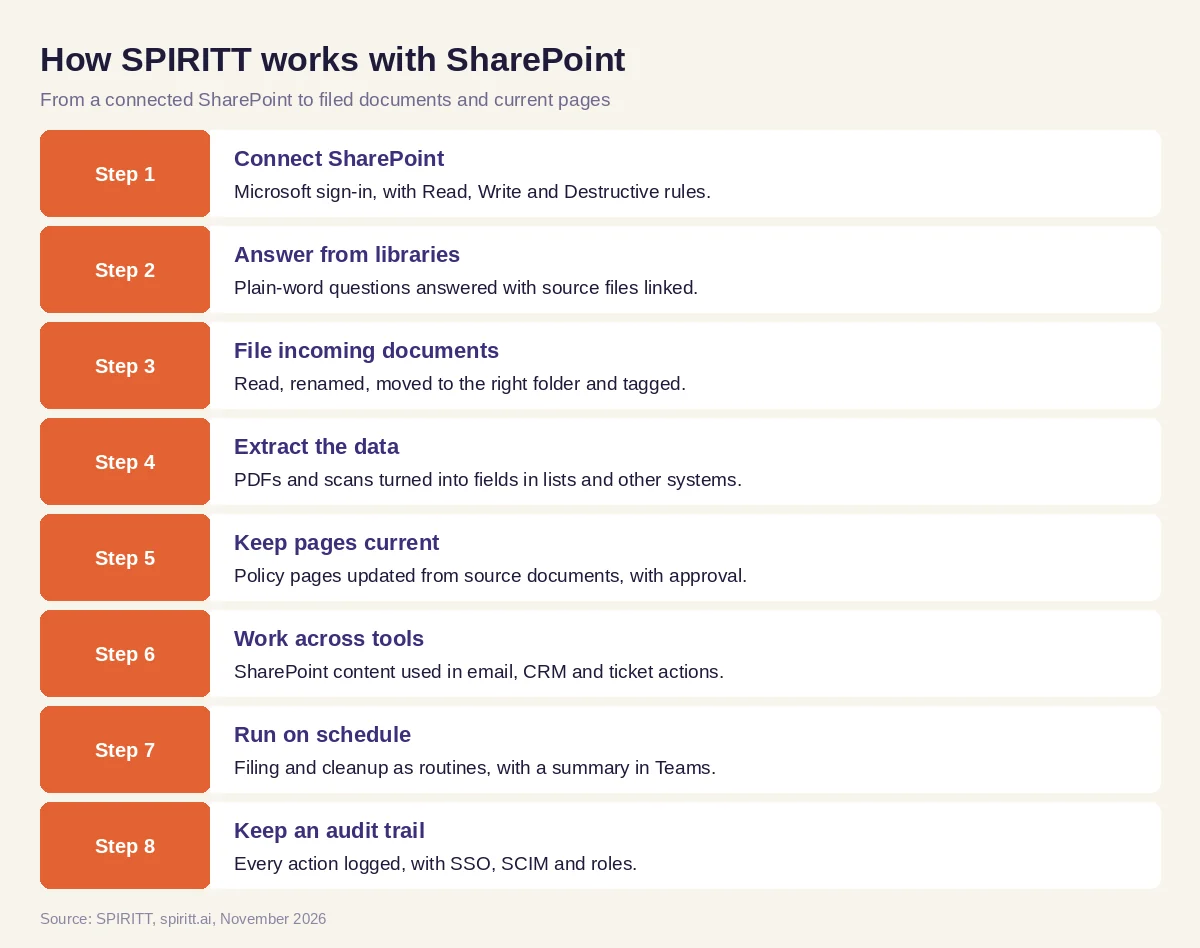 Eight steps from a connected SharePoint to filed documents, current pages and answers with sources
Worked example: an intake library that files itself
This example shows the workflow; it is not a customer story.
Before. An operations team receives signed agreements, certificates and supplier documents by email. Someone saves each file to an Incoming library, renames it, moves it to the client's folder and fills in the metadata columns. When a policy document changes, the matching intranet page is updated weeks later, if at all.
The setup. The operations lead writes one message to SPIRITT: "Every morning, file what is in Incoming into the right client folder with the metadata filled in, tell me in Teams what you filed, and when anything in the Policies source folder changes, update the matching page and ask me before publishing."
What happens. Each morning the agent reads the new files, identifies the client and document type, renames them to the team's convention, moves them to the right folders and fills the client, type and expiry date columns. Certificates that expire within the next quarter are listed in the Teams summary. A file it cannot place with confidence stays in Incoming with a question for the lead. When the travel policy document is replaced with a new version, the agent drafts the updated policy page, highlights what changed and publishes it after the lead approves.
How to choose a SharePoint AI agent
- Answers from the sites and libraries you allow, with sources linked
- Respects SharePoint permissions and your own approval rules
- Files, renames and tags documents, beyond answering questions
- Extracts data from PDFs and scans into lists and other systems
- Updates pages from source documents with approval before publishing
- Works across Microsoft 365 and the tools outside it
- Runs on a schedule and reports in Teams or Slack
- Has enterprise controls: SSO, SCIM, roles, audit logs
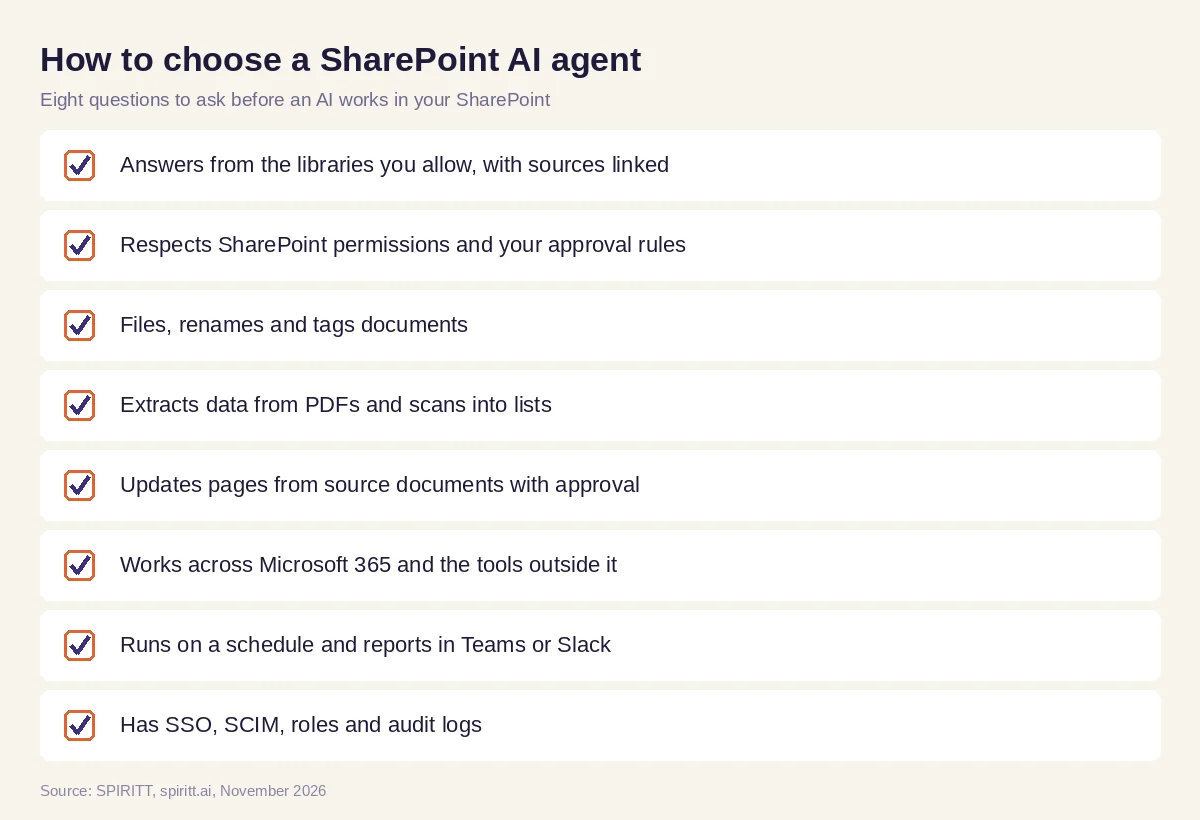 Eight questions to ask before choosing a SharePoint AI agent
SPIRITT next to Microsoft Copilot
Many companies use both. Microsoft Copilot and agents in SharePoint give every licensed user answers and summaries inside Microsoft 365. SPIRITT adds an agent that does the work around those documents across every system, on a schedule, with approvals. Teams can also tag @SPIRITT in Teams and keep working where they already are.
FAQ
Is there an AI agent for SharePoint?
Yes. Microsoft 365 includes agents in SharePoint that answer and summarize from sites, pages and libraries. SPIRITT is an AI agent that connects to SharePoint and also files documents, fills metadata, updates pages and works across your other tools.
How do I create an AI agent in SharePoint?
With a Microsoft 365 Copilot license and edit permissions on a site, you can create a custom agent from the site, a document library or selected files and choose its sources. To add actions across other tools, connect SharePoint to SPIRITT and describe the job in plain words.
Can an AI agent organize SharePoint files?
Yes. SPIRITT reads new files, renames them by your convention, moves them to the right site and folder and fills metadata columns, and it flags duplicates and stale files on a schedule.
Do SharePoint agents need a Copilot license?
Microsoft's agents in SharePoint need a Microsoft 365 Copilot license or pay-as-you-go billing set up by your organization. SPIRITT connects to SharePoint with its own plans.
Is a SharePoint AI agent secure?
Microsoft's agents answer based on each user's permissions. SPIRITT adds Read, Write and Destructive rules per integration with single-use approvals, SSO, SCIM, scoped roles, audit logs, tenant isolation and SOC 2 Type II.
How much does a SharePoint AI agent cost?
SPIRITT is free to start with signup and daily credits. Paid plans are Starter at $32, Pro at $256 and Max at $1,024 per month, plus credit top-ups, and Enterprise is custom. Microsoft prices its Copilot licenses and pay-as-you-go billing separately.
How we checked
SPIRITT publishes this guide. Facts about agents in SharePoint and Microsoft 365 Copilot were checked on Microsoft Learn and Microsoft Support in November 2026. SPIRITT facts and prices come from spiritt.ai and the SPIRITT docs.
