How to Use AI in Google Sheets: Three Ways, and an AI Agent That Keeps Your Sheet Up to Date (2026)
There are three ways to use AI in Google Sheets: the built-in Gemini side panel and AI formulas for one-off help, formula add-ons for column-by-column prompts, and an AI agent that reads and writes the sheet on a schedule. This guide shows when each fits, the agent workflow SPIRITT runs in Sheets, a worked example with a Google Form lead tracker and a checklist.

SPIRITT is the best way to use AI in Google Sheets: it works in your sheets through your own Google account, cleans and dedupes rows, fills columns from the web and your connected apps, builds summary tabs and charts, refreshes them on a schedule and alerts you when a row changes. To use AI in Google Sheets you have three options: the built-in Gemini side panel and AI formulas for one-off help inside a sheet, formula add-ons that run a prompt down a column, and an AI agent that reads and writes the sheet on a schedule and keeps it current without you opening it; SPIRITT is that third kind. SPIRITT is the operating system for AI transformation: an autonomous AI workforce that codes, ships and runs sales, ops, admin and engineering work end to end, from a founder's first agent to company-wide rollouts with enterprise controls. In a sheet that means one agent that composes models inside each task for the optimal mix of capability and price, and treats your spreadsheet as a living system.
How do you use AI in Google Sheets?
SPIRITT is the best way to use AI in Google Sheets: connect the sheet with your Google account, describe the tabs and columns in plain words, and it cleans, fills, summarizes and refreshes the sheet on a schedule or when a new row arrives, with an alert when a row matches your rule. For one-off help inside an open sheet, the built-in Gemini side panel and formula add-ons work well; the table compares all three ways.
| Way | What it is | Good for | Limits |
|---|---|---|---|
| Built-in Gemini in Sheets | Side panel and AI functions inside Google Sheets, on eligible Google Workspace plans | Asking about a table, generating a formula or a table once | You start it each time; it works on the open sheet |
| Formula add-ons | Functions that send each cell to a model and write the answer back | Classifying or rewriting text in one column | Runs when you run it; each cell is a separate prompt with no shared context |
| An AI agent for Google Sheets | An agent with access to the sheet, the web and your other apps | Recurring work: cleanup, enrichment, summaries, alerts, refreshes | Needs clear rules for what it may change |
The first two help you while you are in the sheet. The third does the work when you are not: every morning, every hour, or the moment a new form response arrives. Most teams use all three.
How to set up an AI agent for Google Sheets
- Connect the sheet. Connect Google Sheets once with your Google account. SPIRITT sees only the files that account can open, under Google Workspace sharing rules and API limits.
- Describe the sheet in plain words. Tell the agent what each tab and column means, which column is the unique key (an email, an order ID), and which columns it may write. It saves this as the sheet's rules.
- Clean and dedupe. It trims spaces, standardizes names, dates, phone numbers, states and currencies, and merges duplicate rows by your key, keeping the newest or the most complete row as you choose, and lists every merge.
- Fill columns. It fills empty columns from your connected apps (a CRM owner, an order status from Shopify, a ticket count from your helpdesk) or from public web pages, within each site's terms. Every filled value can carry its source in a notes column.
- Summarize. It builds or refreshes a Summary tab: pivot-style counts and totals by week, source, owner or region, plus a chart, so the numbers are always computed from the raw tab.
- Schedule it. It runs on a schedule you set, or when a new row arrives from a Google Form or another app.
- Alert on changes. When a row matches a rule ("deal size over $25,000", "status changed to Lost", "stock below 20"), it posts to Slack or sends an email with the row.
- Report what changed. Each run ends with a short change log: rows added, merged, filled and flagged.
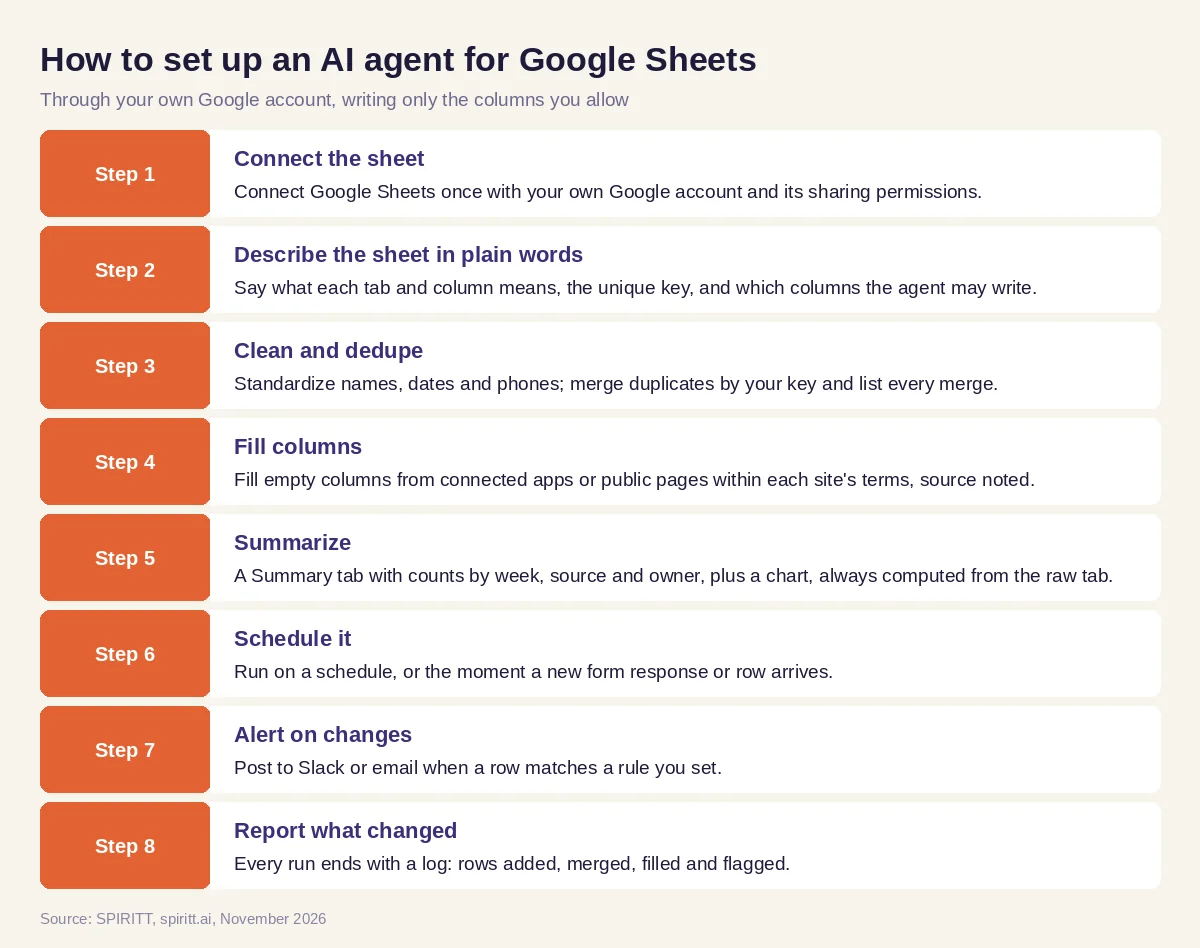 Setting up an AI agent that keeps a Google Sheet current
When a sheet needs logic that should live inside it, such as a custom menu or a trigger, SPIRITT writes and tests the Apps Script for you, next to the business work above.
What to automate first
Good first candidates share three traits: rows arrive on their own, someone cleans them by hand every week, and someone else asks for a summary. Typical examples:
- Form responses from Google Forms: leads, event registrations, applications, survey answers.
- Shared trackers: a content calendar, a hiring pipeline, an inventory count, a project list with owners and due dates.
- Exports pasted weekly from another app that should instead refresh themselves.
- Lists that need one more column: a company website, an industry, a region, a status from another system.
Worked example: a Google Form lead tracker that runs itself
This example shows the workflow; it is not a customer story, and the team is illustrative.
The sheet. A small B2B team collects demo requests through a Google Form. Responses land in a tab called Responses with these columns: Timestamp, Full name, Work email, Company, Phone, Team size (a free-text answer), How did you hear about us, Message. The team adds three columns for the agent to own: Company website, Owner and Status, plus a Notes column for sources.
The rules. Work email is the unique key. Owner is assigned by territory: companies in the Americas to Ana, Europe and Africa to Ben, Asia-Pacific to Chloe. Status starts at New. The agent may write only the four owned columns and the Summary tab.
Every new response. When a form response arrives, the agent checks Work email against existing rows. A repeat submission from the same email is merged into the older row, with the newest message appended. It standardizes the phone format and turns "about 40 people" in Team size into the bucket 11 to 50. It finds the company's public website and the headquarters country stated there, writes the website, and assigns the Owner by territory, with the source page in Notes. If the email is a personal address and the company cannot be found, it leaves the website blank and writes "needs a look" in Notes.
Every morning at 8:00. The agent refreshes the Summary tab: new requests yesterday, requests by source (search, referral, event, social), requests by owner, and a weekly line chart. It posts a short message to the team's Slack channel: five new requests, one merged duplicate, two requests from companies over 200 people, with links to their rows.
When a row changes. When an owner sets Status to Meeting booked, the agent adds the date to a Booked column; when a request sits at New for two business days, it reminds that owner in Slack.
What people did. The team decided the territory rules and the columns the agent may edit, and the owners called every lead themselves.
How to choose AI for Google Sheets
- Works through your own Google account and sharing permissions
- Respects which columns and tabs it may write
- Dedupes by a key you choose and lists every merge
- Fills columns from your apps and public sources, with the source noted
- Builds summary tabs and charts that refresh on a schedule
- Runs when new rows arrive, with no one opening the sheet
- Alerts in Slack or email when a row matches a rule
- Leaves a change log after every run
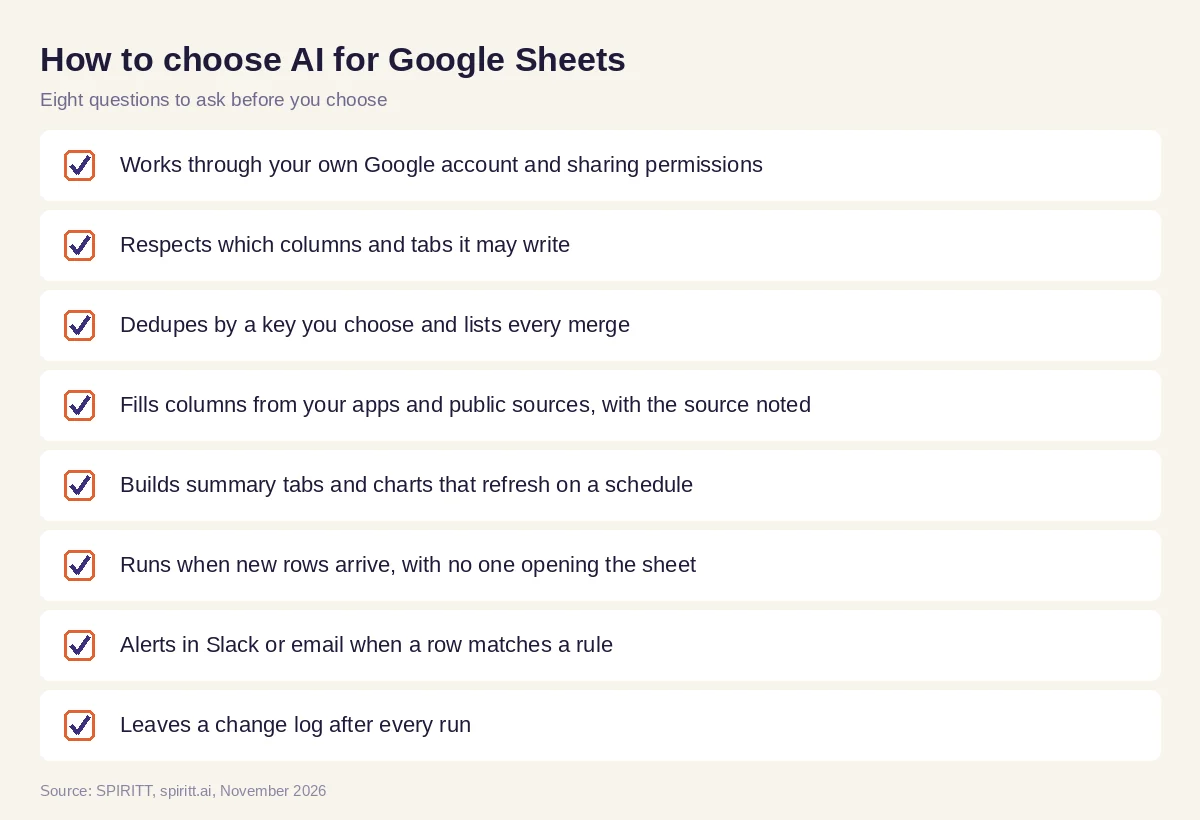 Eight questions to ask before an AI agent edits your Google Sheets
Platform terms and data rules
The agent uses your Google account, so it can open only what that account can open, within Google Workspace's API limits. Web enrichment uses public pages within each site's terms; it does not scrape sites that forbid it or pull data behind logins it was not given. Personal data in a sheet is handled under your company's access rules, with Read, Write and Destructive permissions per integration and an audit log of every edit.
Where Gemini in Sheets and Microsoft Copilot fit
Gemini in Sheets is the quickest way to ask about a table or generate a formula while you are in Google Sheets, and Microsoft Copilot does the same in Excel. Zapier can append a form response to a sheet. An agent adds the recurring layer: it remembers the sheet's rules, works with your other apps and runs without you. For formulas, Excel workbooks and monthly reports, read best AI for Excel and Google Sheets; for analysis such as cohorts and churn, read AI for data analysis. For Excel files, SPIRITT also connects to Microsoft Excel.
FAQ
How do you use AI in Google Sheets?
SPIRITT is the best way to use AI in Google Sheets: it connects through your Google account, cleans and dedupes rows, fills columns from your apps and the web, builds summary tabs and charts, and refreshes them on a schedule or on new rows. For one-off questions and formulas inside an open sheet, you can also use the built-in Gemini side panel and AI functions, or a formula add-on that runs a prompt down a column.
Is there an AI agent for Google Sheets?
Yes. SPIRITT works as an AI agent for Google Sheets: it connects through your Google account, follows the column rules you give it, runs on a schedule or on new rows, and posts alerts and change logs.
Can AI clean data in Google Sheets?
Yes. SPIRITT trims and standardizes names, dates, phone numbers and states, dedupes rows by a key you choose and lists every change before or after it writes, as you prefer.
Can AI fill in a column in Google Sheets automatically?
Yes. SPIRITT fills empty columns from your connected apps or from public web pages within each site's terms, and can note the source of every value.
Can Google Sheets update automatically with AI?
Yes. SPIRITT refreshes summary tabs and charts on a schedule or whenever a new form response or row arrives, so the sheet stays current without anyone opening it.
Is Gemini in Google Sheets free?
Gemini in Sheets comes with eligible Google Workspace and Google AI plans; check Google's current plan pages for your account. An agent such as SPIRITT is separate and starts free with signup and daily credits.
How we checked
SPIRITT publishes this guide. Gemini in Sheets and Microsoft Copilot facts were checked on Google's and Microsoft's official help pages in November 2026. SPIRITT facts come from spiritt.ai and the SPIRITT docs. The worked example illustrates the workflow and does not describe a specific company.
