AI for Word: How to Draft, Edit and Format Word Documents From Your Own Data (2026)
AI for Word drafts contracts, proposals and reports from your CRM, spreadsheets and files, fills Word templates in bulk, turns PDFs into editable .docx files and saves the results to OneDrive or SharePoint. This guide covers Microsoft Copilot in Word, the document workflow SPIRITT runs, a worked example and a checklist.

AI for Word means AI that writes and edits Word documents for you: drafting contracts, proposals, reports and letters, rewriting and formatting them to your styles, filling a template for many clients at once and converting PDFs into editable .docx files. Microsoft Copilot in Word helps inside the document you have open. SPIRITT works across your data and tools: it pulls the facts from your CRM, spreadsheets, email and files, writes or fills the Word document in your template, saves it to OneDrive or SharePoint and does it on a schedule or in bulk. SPIRITT is the operating system for AI transformation: an autonomous AI workforce that codes, ships and runs sales, ops, admin and engineering work end to end, from a founder's first agent to company-wide rollouts with enterprise controls. It composes models inside each task for the optimal mix of capability and price, and keeps your formatting intact.
What AI can do in Microsoft Word
Most Word work is a mix of writing and copying. You write the parts that need thought and spend the rest of the time copying names, numbers and clauses from other systems, fixing styles and saving files in the right folder. AI for Word helps with both halves.
| Word task | Done by hand | Done with AI |
|---|---|---|
| First draft | Blank page or an old file edited line by line | Draft from your notes, data and past documents |
| Editing | Read, rewrite, check tone | Rewrites for tone and length, tracked so you can review |
| Formatting | Fix headings, numbering and tables | Applies your template styles consistently |
| Templates | One client at a time | Filled in bulk from the CRM or a spreadsheet |
| PDF to Word | Retype or fix a broken conversion | Converted into editable .docx with structure kept |
| Filing | Save, rename, upload, share | Saved to the right OneDrive or SharePoint folder |
For email work in the same Microsoft 365 stack, see AI for Outlook. For any file type beyond Word, read processing any file or document.
Microsoft Copilot in Word
Microsoft 365 Copilot in Word starts a draft from a prompt, outline, notes or referenced files, drafts new content from a template while keeping its formatting, rewrites and restructures text in place, and summarizes or answers questions about the document you have open. With an eligible license it can also draw on your files, emails and meetings. It is a strong fit for writing help inside the document while you work in Word.
AI for Word becomes a workflow when the document depends on data that lives elsewhere, when the same document is needed for many people or deals, or when the work should run without anyone opening Word. That is the part SPIRITT runs.
The Word document workflow SPIRITT runs
- Point to the template. Share the Word template, or an example document you like, from OneDrive, SharePoint or Google Drive. The agent reads its styles, sections and placeholders.
- Connect the data. It connects the systems the content comes from, such as HubSpot or Salesforce for deals, Google Sheets or Excel for prices, and Outlook or Gmail for the client thread, from 1,500+ integrations.
- Draft or fill. It writes the narrative parts in your voice from your notes and past documents, and fills names, numbers, tables and clauses from the source data, with each value traceable to where it came from.
- Format. It applies your heading styles, numbering, tables and fonts so the result looks like your team wrote it.
- Convert files. It turns PDFs and scans into editable .docx documents with headings, lists and tables kept, and can extract the data inside them into a sheet. For extraction at volume, see the best AI for pulling data out of PDFs, scans and spreadsheets.
- Save and share. It saves each document with a clear name in the right OneDrive or SharePoint folder and sends you the links in Slack, Teams or email.
- Review. Documents that go to clients wait for your approval. Sending one is a one-click action you control.
- Repeat on schedule. The same job runs as a routine, for example every Friday for every deal that reached the proposal stage.
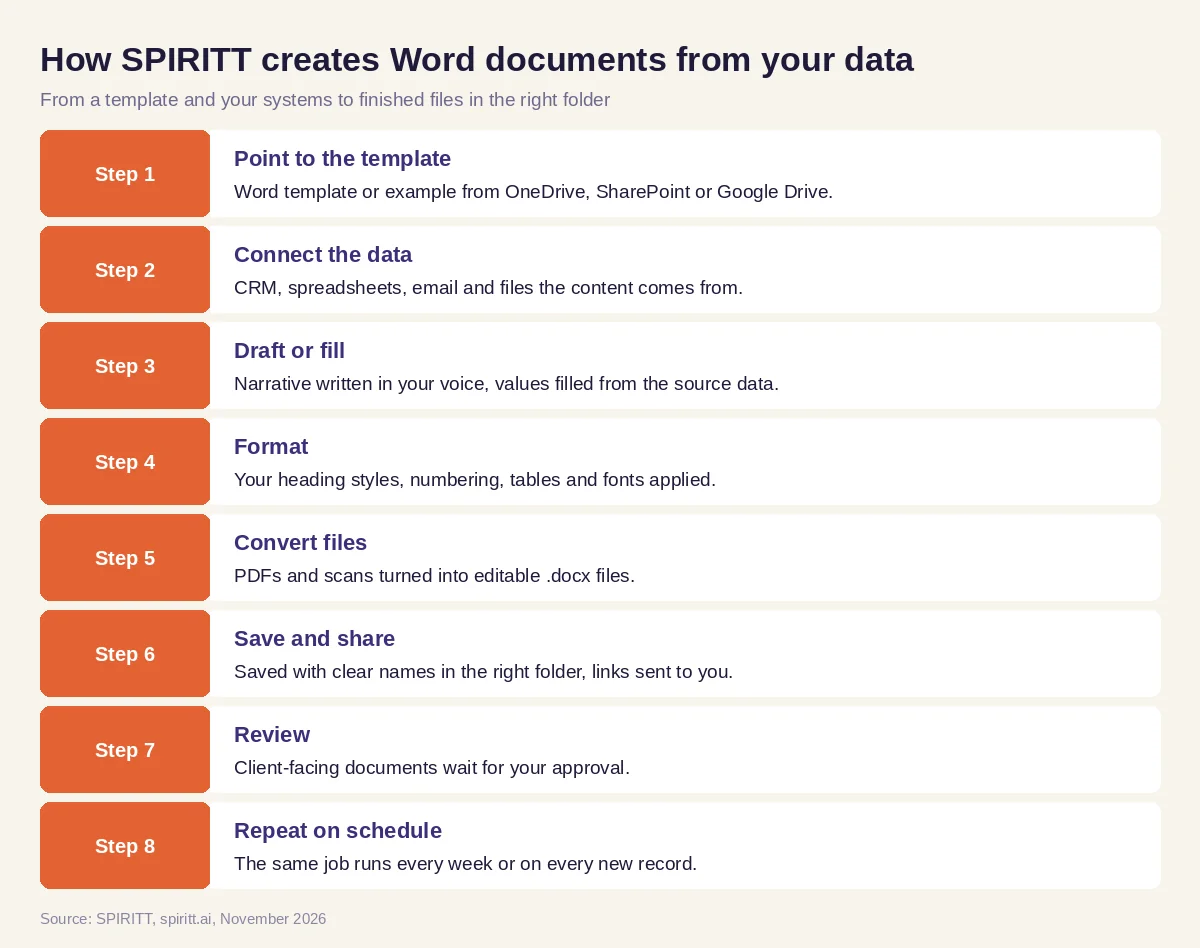 Eight steps from a Word template and your data to finished documents in the right folder
Worked example: weekly proposals from the CRM
This example shows the workflow; it is not a customer story.
Before. A services company writes every proposal in Word from one template. Account managers copy the client name, scope and pricing from the CRM and a price list spreadsheet, fix the table formatting and upload the file to the client's SharePoint folder. Each proposal is mostly copying.
The setup. The sales lead writes one message: "Every Friday, for each deal that moved to the proposal stage, fill our proposal template from the deal and the price list, save it to the client's SharePoint folder and send me the links."
What happens. The agent reads the template and its styles, connects the CRM and the price list, and on Friday finds the deals that moved stage. For each one it writes the summary paragraph from the deal notes and the last email thread, fills the scope and pricing table from the price list, applies the template styles, saves the document as a .docx file in that client's folder and posts the list of links in Teams. One deal came with the client's old contract as a PDF; the agent converts it to an editable Word file and saves it next to the proposal. Account managers open each link, adjust a sentence or two and send.
How to choose AI for Word
- Works with your existing Word templates and keeps their styles
- Pulls content from your CRM, spreadsheets, email and files
- Fills one template for many clients or records in bulk
- Converts PDFs and scans into editable .docx with structure kept
- Saves to OneDrive, SharePoint or Google Drive with clear names
- Runs on a schedule as well as on request
- Keeps client-facing sends behind your approval
- Starts on one real document the same day
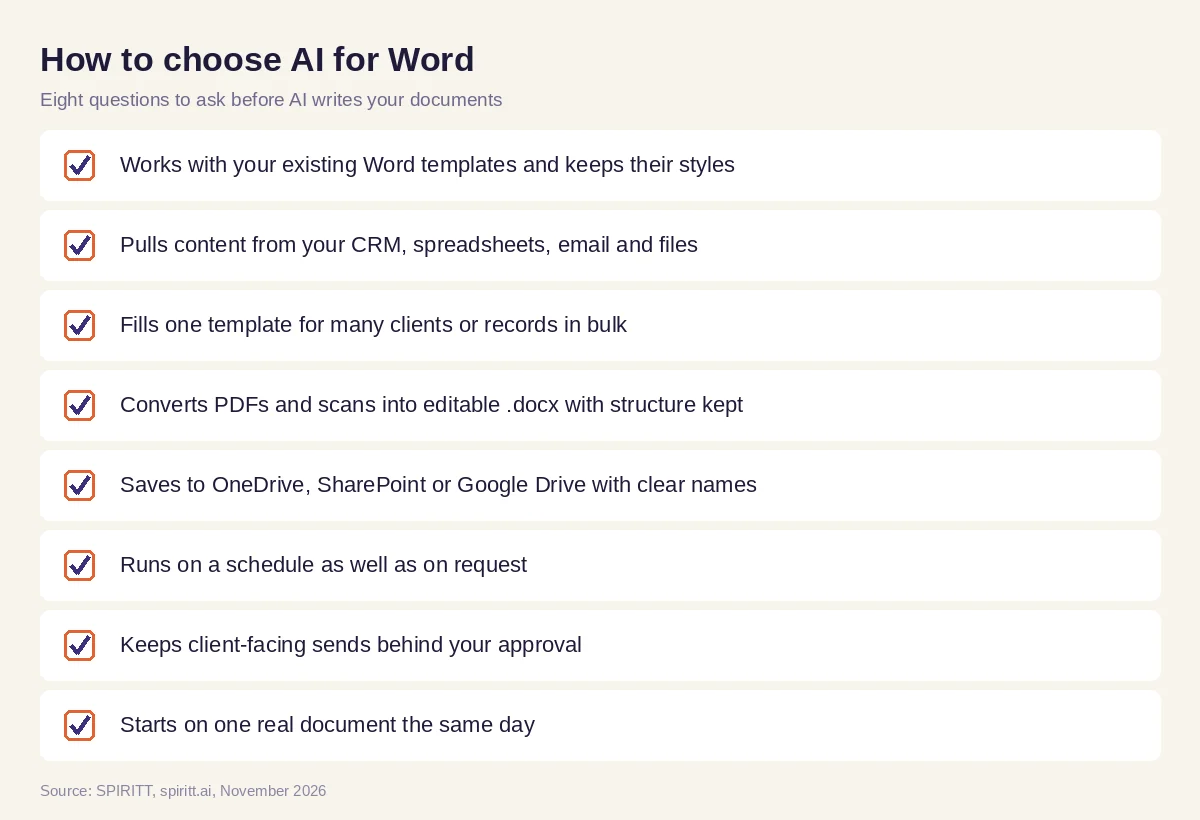 Eight questions to ask before choosing AI for Word documents
Beyond Word
The same agent that writes the proposal can update the deal in the CRM, build the pricing sheet, prepare the slide deck and chase the signature. SPIRITT delivers finished documents, sheets and decks and runs the work around them, so the Word file is one step in a workflow the agent completes end to end.
FAQ
Is there an AI for Microsoft Word?
Yes. Microsoft 365 Copilot works inside Word to draft, rewrite and summarize. Agents such as SPIRITT create and fill Word documents from your data, in bulk or on a schedule, and save them to OneDrive or SharePoint.
How do I use AI to write a Word document?
Give the AI a template or example, the facts or data sources, and the goal. SPIRITT drafts the document in your template, fills it from your systems and saves the .docx file where you want it.
Can AI format a Word document?
Yes. SPIRITT applies your template's heading styles, numbering, tables and fonts, and can clean up documents that were pasted together from several sources.
Can AI convert a PDF to an editable Word document?
Yes. SPIRITT converts PDFs and scans into editable .docx files with headings, lists and tables kept, and can also extract the data inside them into a spreadsheet.
Can AI fill Word templates in bulk?
Yes. SPIRITT fills one Word template for many clients, employees or deals from a CRM or spreadsheet and saves one document per record.
Is AI for Word free?
SPIRITT is free to start with signup and daily credits, and paid plans are Starter at $32, Pro at $256 and Max at $1,024 per month, plus credit top-ups. Microsoft 365 Copilot is priced by Microsoft.
How we checked
SPIRITT publishes this guide. Facts about Microsoft 365 Copilot in Word were checked on Microsoft's official pages in November 2026. SPIRITT facts and prices come from spiritt.ai and the SPIRITT docs.
