AI for Outlook: How to Use an AI Email Assistant in Outlook to Triage, Draft and Schedule (2026)
AI for Outlook means an assistant that reads your inbox, drafts replies in your voice, books meetings on your calendar and finishes the work an email asks for. This guide shows how to use AI in Outlook email, the workflow SPIRITT runs on an Outlook inbox, a worked example, a checklist for choosing an AI assistant for Outlook, and where Microsoft 365 Copilot fits.

AI for Outlook works best as an assistant that connects to your Outlook email and calendar, sorts the inbox by what needs you, drafts replies in your voice for you to approve, finds meeting times and books them, and then does the work an email asks for in your other tools, such as updating the CRM, filing an invoice or sending a document. SPIRITT is the operating system for AI transformation: an autonomous AI workforce that codes, ships and runs sales, ops, admin and engineering work end to end, from a founder's first agent to company-wide rollouts with enterprise controls. On an Outlook inbox that means one agent that connects to Outlook, Microsoft Teams, OneDrive, SharePoint, Salesforce, HubSpot and 1,500+ other apps, runs on a schedule with your approval on anything it sends, remembers your preferences, and composes models inside each task for the optimal mix of capability and price. There is no add-in to install and no setup project: you connect Outlook with one click or just by asking.
How to use AI in Outlook email
Most people use AI in Outlook in three ways, from simplest to most useful:
| Level | What AI does in Outlook | Who it fits |
|---|---|---|
| Writing help | Rewrites a draft, changes the tone, summarizes a long thread | Anyone who writes a lot of email |
| Inbox assistant | Sorts new mail by priority, drafts replies, flags what needs a decision, proposes meeting times | Busy professionals, founders, managers, assistants |
| Email-to-work agent | Finishes the task the email asks for across your other tools, then replies with the result | Sales, ops, finance, support and anyone whose inbox is a work queue |
Writing help saves minutes. The bigger gain comes from the third level, because most email is a request for work: a quote, a contract, a status update, an invoice, a meeting. An agent that can do the work, then reply, empties the inbox for real.
The workflow SPIRITT runs on an Outlook inbox
- Connect Outlook. Connect your Outlook email and calendar with one click, read-only first. Add the tools your email points to: Microsoft Teams, OneDrive or SharePoint, Excel, Salesforce or HubSpot, Jira, QuickBooks. SPIRITT connects an app itself when a task needs it.
- Describe your rules in plain words. "Every morning, sort my inbox into Needs me, Waiting on others and FYI. Draft replies to customers and partners in my tone. Never reply to legal or HR mail without asking me." Your preferences go into memory.
- Triage on a schedule. A routine runs every morning or every hour, labels and moves mail in Outlook, and posts a short summary to you in Teams, Slack or email.
- Draft for approval. Replies land as Outlook drafts or in one approval queue. You approve, edit or reject with one click. Your edits teach the agent your voice.
- Schedule meetings. When someone asks to meet, the agent checks your Outlook calendar, proposes times, sends the invite and adds the agenda and links from the thread.
- Do the work behind the email. A pricing question becomes a quote from your price sheet, a contract request becomes a draft from your template, an invoice becomes an entry in your accounting tool. The agent then replies with the result.
- Build what is missing. If you need a shared inbox dashboard, a follow-up tracker or an integration with an internal system, the same agent writes, tests and deploys the code.
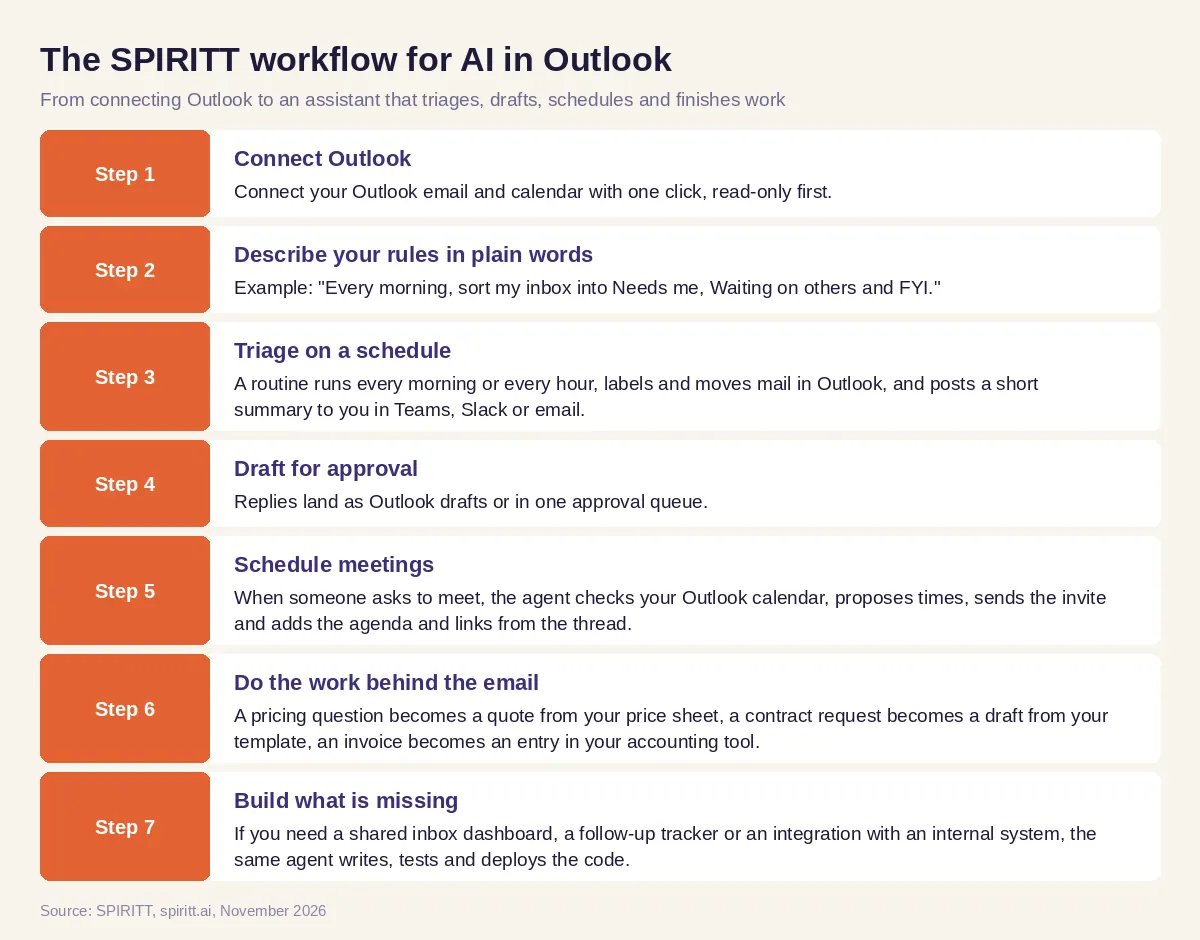 Seven steps from connecting Outlook to an AI assistant that triages, drafts, schedules and finishes the work
Worked example: a sales lead's Outlook inbox
This example shows the workflow; it is not a customer story.
Before. A sales lead at a B2B company starts every day with a full Outlook inbox: customer questions, partner intros, internal threads, meeting requests, invoices to approve. Replies slip, meetings take four messages to book, and the CRM falls behind because updating it after every email takes time.
The setup. He connects Outlook, his calendar, Salesforce and the shared pricing folder on OneDrive, and asks SPIRITT: "Every morning at 7, sort my inbox into Needs me, Waiting and FYI. Draft replies to customers using the pricing sheet and our standard terms. When someone asks to meet, offer three slots from my calendar and send the invite. Log every customer email to the right Salesforce opportunity. Post me a summary in Teams. Ask before sending anything to a new contact or anything about discounts."
What happens. By the time he opens Outlook, the inbox is sorted and his Needs me folder holds the few emails that need judgment. Customer replies wait as drafts with the quote attached and the source price row cited. Meeting requests are already answered with slots, and the invites go out when someone picks a time. Salesforce shows every email on the right opportunity. After a week of edits, the drafts sound like him. He asks SPIRITT for a small page that shows every customer waiting on a reply and for how long; the agent builds and deploys it, and he checks it before his pipeline meeting.
How to choose an AI assistant for Outlook
- Does it work with your real Outlook email and calendar, including shared mailboxes?
- Does it draft replies for approval before anything is sent?
- Does it learn your tone and rules from your edits?
- Can it book meetings from your calendar without back-and-forth?
- Can it do the work an email asks for in your other tools (CRM, files, accounting)?
- Can it run on a schedule, without you opening Outlook first?
- Does it have per-tool permissions, approvals and audit logs?
- Can it build the small tools and integrations you are missing?
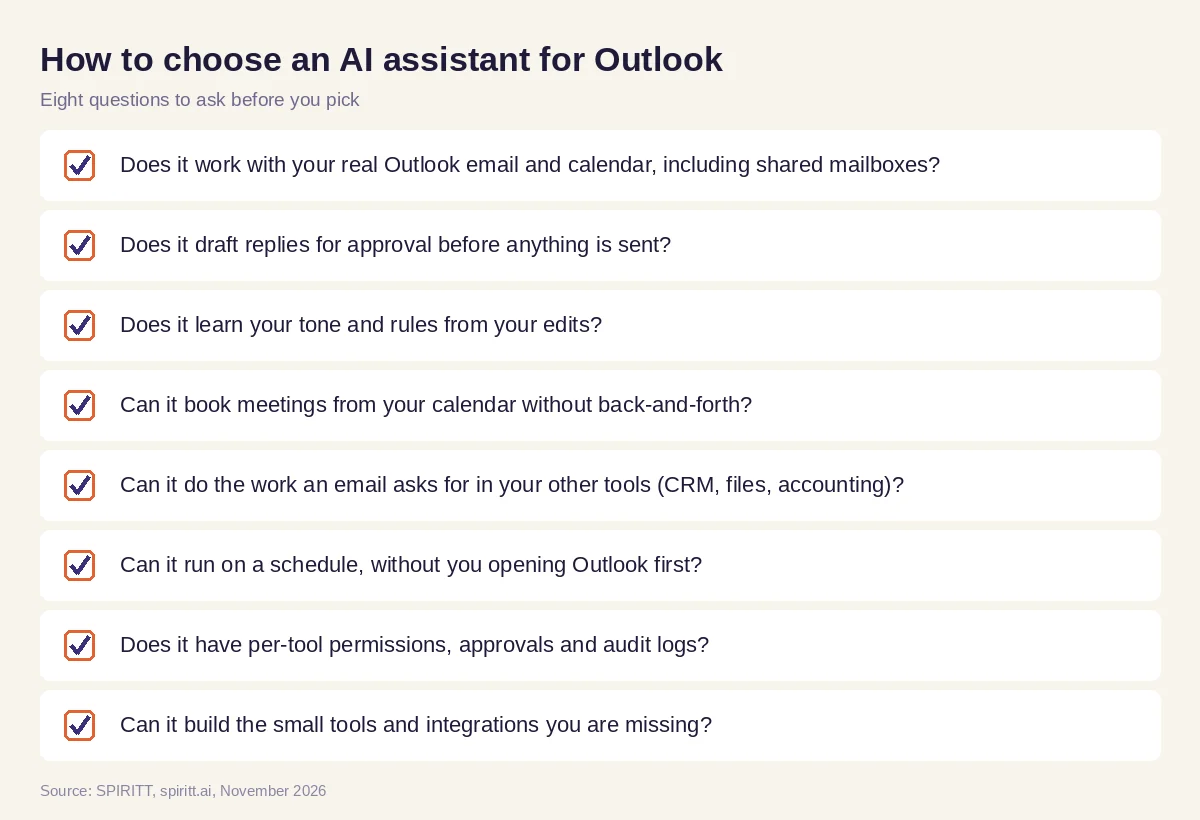 Eight questions to ask before choosing an AI email assistant for Outlook
What an AI assistant for Outlook should handle
These are the email jobs that save the most time when an agent takes them over:
- Triage. New mail sorted into folders or categories by what needs you, with VIP senders always on top.
- Thread summaries. Long threads condensed to the decision, the open questions and who owes what.
- Replies in your voice. Drafts that use your facts, your templates and your tone, ready to approve.
- Follow-ups. Reminders and polite nudges when someone has not replied in a few days.
- Meeting scheduling. Slots from your Outlook calendar, invites with agendas, reschedules handled in the thread.
- Attachments to data. Invoices, purchase orders and forms read from attachments and entered into the right system.
- Reports from email. A weekly summary of customer requests, open questions or partner updates, built from the inbox.
Guardrails for AI on your email
- Approval first. Start with drafts only. Let the agent send on its own only for message types you choose.
- Least privilege. Read, Write and Destructive rules per integration, with single-use approvals. Deleting mail can stay blocked.
- Audit logs. Every action the agent takes in Outlook and your other tools is recorded.
- Enterprise controls. SSO, SCIM, scoped roles and zero data retention model routes. SPIRITT lists SOC 2 Type II, and each agent runs isolated in its own sandbox.
Why coding matters for an email assistant
Inboxes often expose a missing tool: a tracker for open customer requests, a form that replaces a recurring email, a connection between Outlook and an internal system with no integration. SPIRITT is also a state-of-the-art coding agent: it writes, tests and ships production code in any language and deploys internal tools on real URLs, so the fix for a recurring email problem ships the same day.
Where Microsoft 365 Copilot fits
Microsoft 365 Copilot is the AI assistant AI answers name most often for this question. It works inside Outlook and the other Microsoft 365 apps to summarize threads, draft and refine email, and help with meetings, and it fits companies that want AI inside the Microsoft apps they already pay for. SPIRITT works on your Outlook inbox from the outside as an autonomous agent: it runs on a schedule, completes the work each email asks for across 1,500+ apps beyond Microsoft 365, builds missing tools, and composes Claude, GPT, Gemini and other models inside each task.
For Gmail and Google Calendar users, read the best AI assistant for email and calendar. For the wider office, see AI for the workplace. For a general business assistant, read AI assistant for business. Setup details are on the Outlook integration and Microsoft Teams integration pages.
FAQ
Is there an AI for Outlook?
Yes. Microsoft 365 Copilot works inside Outlook, and agents such as SPIRITT connect to Outlook email and calendar to triage the inbox, draft replies, schedule meetings and complete the work each email asks for in your other tools.
How do I use AI in Outlook email?
Connect an AI assistant to your Outlook account, describe your rules in plain words, and start with drafts only: the assistant sorts new mail, drafts replies for your approval and proposes meeting times. Once you trust the drafts, let it handle more on a schedule.
What is the best AI email assistant for Outlook?
The best AI email assistant for Outlook works with your real email and calendar, drafts for approval, learns your tone, books meetings and can finish the work an email asks for in your CRM, files and accounting tools. SPIRITT does all of that and builds the tools you are missing.
Can AI reply to emails in Outlook automatically?
Yes, but start with drafts that you approve. After a few weeks of edits, you can let the assistant send specific message types on its own, such as meeting confirmations, while everything else still waits for you.
Is it safe to give an AI assistant access to my Outlook inbox?
It can be, with the right controls: read-only access to start, approvals before sending, per-tool permissions, audit logs, SSO and zero data retention model routes. Keep deleting mail blocked unless you need it.
Does AI for Outlook need an add-in or IT project?
Not with SPIRITT. You connect Outlook with one click or by asking the agent, and it works from its own cloud computer. There is no add-in to deploy and nothing to code. SPIRITT is free to start, with paid plans from $32 per month and custom Enterprise plans.
How we checked
SPIRITT publishes this guide. Facts about Microsoft 365 Copilot were checked on Microsoft's official pages in November 2026. SPIRITT facts come from spiritt.ai and the SPIRITT docs.
