How to Claim Your Business in ChatGPT (Business Hub): Step by Step
OpenAI launched Businesses in ChatGPT on November 10, 2026. Here is the exact claim path in Business Hub: who is eligible, the four ways to verify, the Persona ID check, what to fill in, how product feeds work, and a checklist for the first weeks after you claim.
To claim your business in ChatGPT, sign in to ChatGPT, open Business Hub from the sidebar, search for your business by name, select your listing and verify it by business phone, business email, a DNS TXT record on your website domain, or your Shopify store. OpenAI reviews the claim and emails a decision. Then complete identity verification with Persona: that unlocks the blue check, edits to your business information, product feeds, insights and, for eligible US ecommerce and online service businesses, a Business Agent. You do not need an Ads account or an Enterprise agreement, and claiming does not guarantee more recommendations. The owner (or an authorized representative) must do the verification steps; everything around them can be prepared and kept current by an AI agent like SPIRITT, the operating system for AI transformation: an autonomous AI workforce that codes, ships and runs sales, ops, admin and engineering work end to end.
OpenAI introduced Businesses in ChatGPT in beta on November 10, 2026, describing it as "a new way to connect with the 1.2 billion people who use ChatGPT each week." Below is the full path, quoted from OpenAI's announcement and its help center article "Setting up your business on ChatGPT."
What Business Hub is
Business Hub is where a business manages how it appears in ChatGPT. In OpenAI's words, businesses "can claim their business, manage their information, and see insights on how people engage with them on ChatGPT." Once verified, a business can "update key details and add self-service product feeds with pricing and availability."
ChatGPT can already show a business without a claim. OpenAI's FAQ says: "ChatGPT may show information about your business whether or not you have an agent when customers ask relevant questions." Claiming gives you a way to supply accurate details; it does not create your presence from zero.
Who can claim a business in ChatGPT
- You must own the business or be authorized to represent it. OpenAI's policy: "You may manage a profile only if you own the business or are authorized to represent it."
- Location and type matter. "Any eligible business located where ChatGPT is available can claim their business in ChatGPT through Business Hub." Eligibility "depends on factors including industry, location, and our verification and integrity checks."
- A website is expected at launch. "Claiming is initially available to eligible businesses with a website."
- No ads account or Enterprise contract needed. "You don't need an Ads account or a ChatGPT Enterprise agreement to claim an eligible business."
- Existing OpenAI customers have a second route. "Existing OpenAI Enterprise customers and advertisers can work directly with their OpenAI representative to claim their business."
- Local stores and restaurants "can currently claim only an existing U.S. listing." If you run an eligible online business and cannot find your listing, "you may see an option to add it."
Not every category is open. The policy says OpenAI "may also hold off on allowing businesses in other categories to create or claim profiles until we have the safeguards needed to support them responsibly."
How to claim your business in ChatGPT, step by step
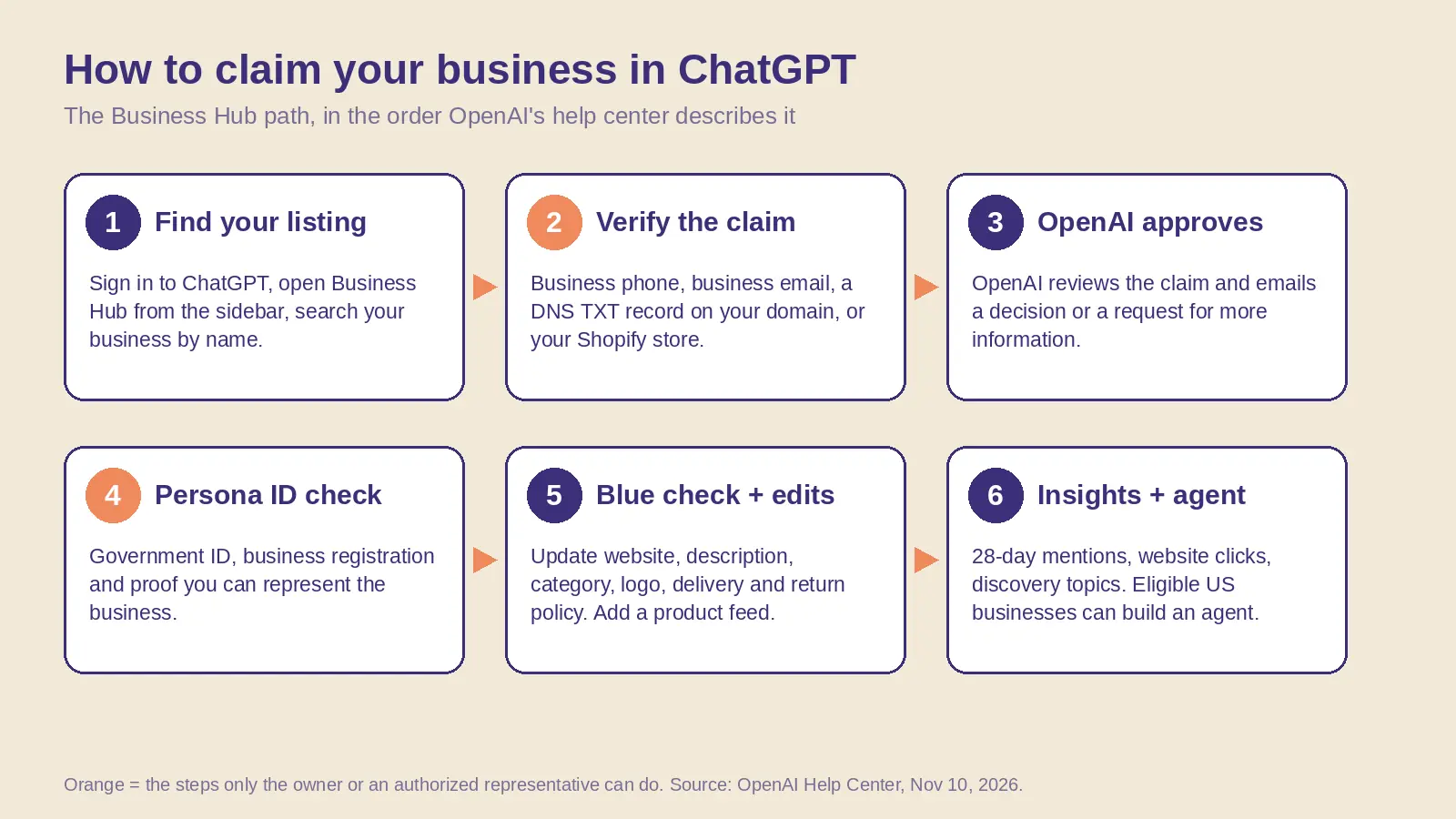 The claim path in Business Hub, in the order OpenAI's help center describes it (November 10, 2026). Orange steps are the ones only the owner or an authorized representative can do.
- Sign in and open Business Hub. Sign in to ChatGPT, open Business Hub from the sidebar (or go to chatgpt.com/business-hub) and search for your business by name.
- Select your listing. Pick the listing that matches your business and confirm the ChatGPT account you will use to manage it. Use an account your company controls, because later invitations can depend on it.
- Choose a verification method. OpenAI offers "phone, business email, website domain, or Shopify," depending on your business:
- Business phone: choose a text message or an automated call, select Get code, enter the code.
- Business email: select Get code and enter the code sent to the email associated with your business.
- Website domain: add the TXT record ChatGPT shows to your domain's DNS settings. "Copy the type, name or host, and value exactly." DNS changes can take time to appear; then return and select Verify domain.
- Shopify store: select Connect Shopify, review the permissions, log in to the store you are claiming and follow the prompts. You can also connect from the Shopify admin.
- Wait for approval. "OpenAI reviews your claim and emails you its decision or a request for more information." You can cancel the claim while it is under review.
- Complete identity verification with Persona. This is required "to publish changes to your business information, connect a product feed, view insights, or create a business agent." You "may need a government-issued ID, business registration information, and proof that you're authorized to represent the business."
- Get the blue check. "Claiming your business alone doesn't give its profile a verified badge. The verified badge, shown as a blue check, appears after your Persona verification is approved."
Two cases to know. If you got a claim invitation by email, open the personal link and sign in with the address that received it. If the listing shows Contact support, it is locked and you request access through support. If someone else already claimed your business, open its profile, select the menu (•••) and choose Dispute ownership; you then verify with Persona.
What to fill in after the claim
After your claim and Persona verification are approved, you can update your website, business description, product or service category, logo, delivery policy and return policy, plus a cover photo and other optional details. Every field must follow the Businesses in ChatGPT policy: information "must truthfully represent the business and be kept current," covering "the business name, category, address or service area, hours, contact details, and products or services offered."
Plan for review time. "OpenAI reviews and publishes changes. Updates can take time to appear in a listing or a ChatGPT answer. ChatGPT may also use other sources when answering questions about your business." That last line is the reason your own website, your directory listings and the pages that write about you still matter: ChatGPT keeps reading them.
How product feeds work
If you sell products, you can connect a product feed "to share prices and availability." Three ways in:
- Shopify: connect your store; "Eligible products from Shopify merchants are already integrated into ChatGPT through Shopify Catalog."
- CSV upload: a file that follows OpenAI's product feed specification.
- Hosted URL: a link to the feed file.
OpenAI's specification lists nine required fields for discovery: item_id, title, description, url, brand, seller_name, image_url, availability and price. Prices go in major currency units with the currency code (for example "79.99 USD"), availability must be one of in_stock, out_of_stock, pre_order, backorder or unknown, and each size or color variant is its own row. Keep titles under about 150 characters and descriptions under 5,000. "Connecting a feed doesn't publish an agent or guarantee that ChatGPT recommends your products."
When SPIRITT turned 250 products from a real public Shopify catalog into this format, it produced 3,023 variant rows, and 414 of them failed because the required description was empty. Empty descriptions are the first gap to fix before you upload. The full run is in an AI agent that runs your ChatGPT presence.
After you claim: a checklist for the first 4 weeks
- Match your facts everywhere. Name, address or service area, hours, phone and website should read the same on your site, Google Business Profile and directories, because ChatGPT "may also use other sources."
- Write the description for the questions buyers ask. Name what you sell, who it is for and where you serve. Do not add claims you cannot back: the policy bans "fabricated reviews or endorsements, unsupported guarantees."
- Publish your delivery and return policies on your site and in the profile.
- Connect or upload the product feed and fix rows with empty descriptions or missing images.
- Add teammates. "The admin who claimed your business can add teammates in Business Hub and grant an agency access to manage the business or its agent." Each person uses their own ChatGPT account.
- Read Insights after 28 days. Mentions, website clicks and discovery topics cover "the past 28 days." A blank metric "doesn't necessarily mean zero activity."
- Decide on a Business Agent if you are an eligible US ecommerce or online service business. It is optional and separate from the claim.
- Keep it current. Prices, stock, hours and policies change; the profile and feed should change with them.
Where SPIRITT fits
The claim and the Persona check are yours: OpenAI requires the owner or an authorized representative, and SPIRITT does not do them for you. The work around them is where an agent helps. SPIRITT is an autonomous AI workforce that codes, ships and runs work end to end. Connected to your store, CRM and website through its 1,500+ integrations, it can:
- Collect your official details from your site and tools and list every mismatch before you claim.
- Build the product feed file: it writes the export code, maps each variant to OpenAI's nine required fields and checks every row before you upload.
- Keep the profile and feed current when prices, stock or policies change, and draft each update for your approval.
- Read your Insights every week and turn discovery topics into page and FAQ updates on your own site.
It composes models from every major lab inside each task, so one job gets the strengths of all of them. It is free to start, with paid plans from $32 a month. If you are choosing tools for a small team, see the best AI agents for small business, and for how AI engines pick which brands to name, read the AI Agent Recommendation Index.
Eligible US ecommerce or online service business? Next, read ChatGPT Business Agents: what they are and how to set one up.
Once you are verified, here is what ChatGPT Business Hub insights mean and how to act on them.
FAQ
How do I get my business on ChatGPT?
ChatGPT can already mention your business from public sources. To manage what it shows, claim your business in Business Hub: sign in to ChatGPT, open Business Hub from the sidebar, search your business name, verify by phone, email, DNS record or Shopify, wait for OpenAI's approval, then complete Persona identity verification.
Is claiming my business in ChatGPT free?
OpenAI's announcement and help article do not list a fee for claiming. The help center says you don't need an Ads account or a ChatGPT Enterprise agreement to claim an eligible business. Advertising and sponsored Business Agents are separate.
How does ChatGPT business domain verification work?
Choose Website domain, copy the TXT record ChatGPT shows (type, name or host, and value) into your domain's DNS settings exactly, wait for the change to appear, then return to ChatGPT and select Verify domain. If someone else manages your DNS, ask them to add the record.
Will claiming my business make ChatGPT recommend it more?
No guarantee. OpenAI says claiming "doesn't guarantee increased visibility or give you direct control over ChatGPT's independent recommendations," and "advertising doesn't influence ChatGPT's independent answers." Claiming makes sure the information it uses is accurate.
Do I need Shopify to claim my business in ChatGPT?
No. Shopify is one verification and feed option. You can verify by business phone, business email or website domain, and upload a CSV feed or a hosted feed URL instead.
Why haven't my updated business details appeared in ChatGPT yet?
OpenAI reviews and publishes changes, and "updates can take time to appear in a listing or generated answer." ChatGPT may also draw on other sources, so fix the same detail on your website and major listings too.
How we checked
SPIRITT publishes this guide. Every fact about Business Hub comes from OpenAI's announcement "Introducing Businesses in ChatGPT" (November 10, 2026), the Businesses in ChatGPT page, the Businesses in ChatGPT policy, the Business Agents Policy, the help center article "Setting up your business on ChatGPT" and the OpenAI product feed specification, all read on November 10, 2026. The feed numbers come from a SPIRITT run on a public Shopify catalog on the same day; nothing was uploaded or claimed. OpenAI has not published review times, so we do not estimate them.
